How to Update a Member’s Tier Level manually in Ostana
Last updated: June 14, 2025
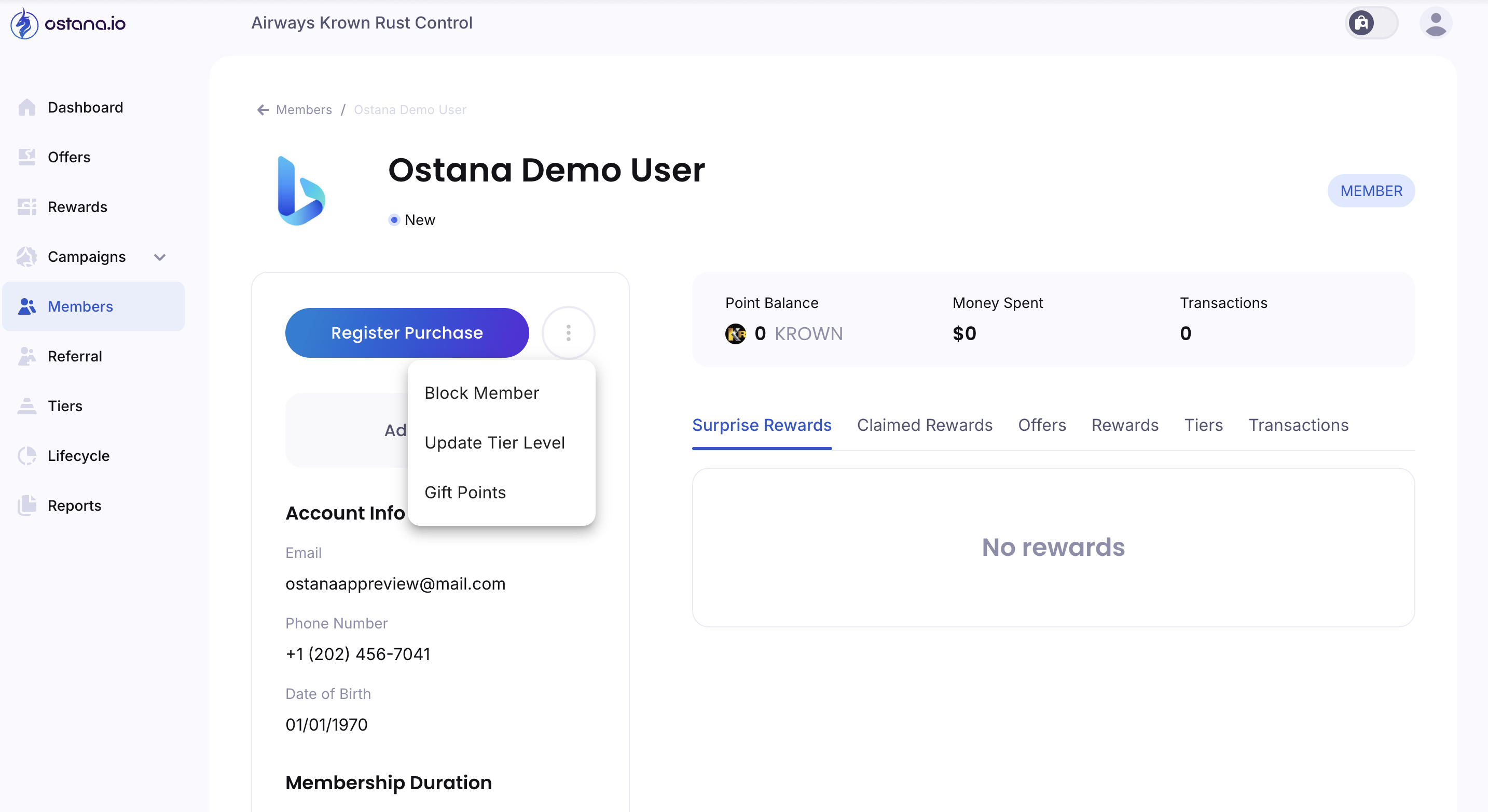
Manually updating a member’s tier level is useful when recognizing VIPs, correcting errors, or onboarding customers into a prequalified tier.
✅ Step-by-Step: Update Tier Level
1. Go to the Members Tab
Click Members in the sidebar menu.
2. Open the Member Profile
Search for or scroll to the customer and click their name.
3. Click the Three-Dot Actions Menu
Located next to the Register Purchase button at the top.
4. Select Update Tier Level
This opens the tier selection dropdown.
5. Choose a New Tier
Pick the desired tier (e.g., Silver, Gold, VIP).
6. Add a Note (Optional but Recommended)
Enter a reason for the change (e.g., “Manual upgrade for top spender”).
7. Confirm the Change
Click Update Tier or Confirm to save the new tier assignment.
📊 What Happens Next?
The member is moved to the new tier instantly
They gain access to any tier-based offers or rewards
Their profile will reflect the new tier status
📢 If notifications are enabled, the member will be informed automatically.
🚧 Troubleshooting
Tier option not available?
Go to the Tiers tab and ensure your tiers are created first
No update button visible?
Confirm you have the right permissions (staff or admin)
Use manual tier updates to deliver exceptional experiences to your most loyal members!