How to Import a List of Customers in Bulk
Last updated: June 12, 2025
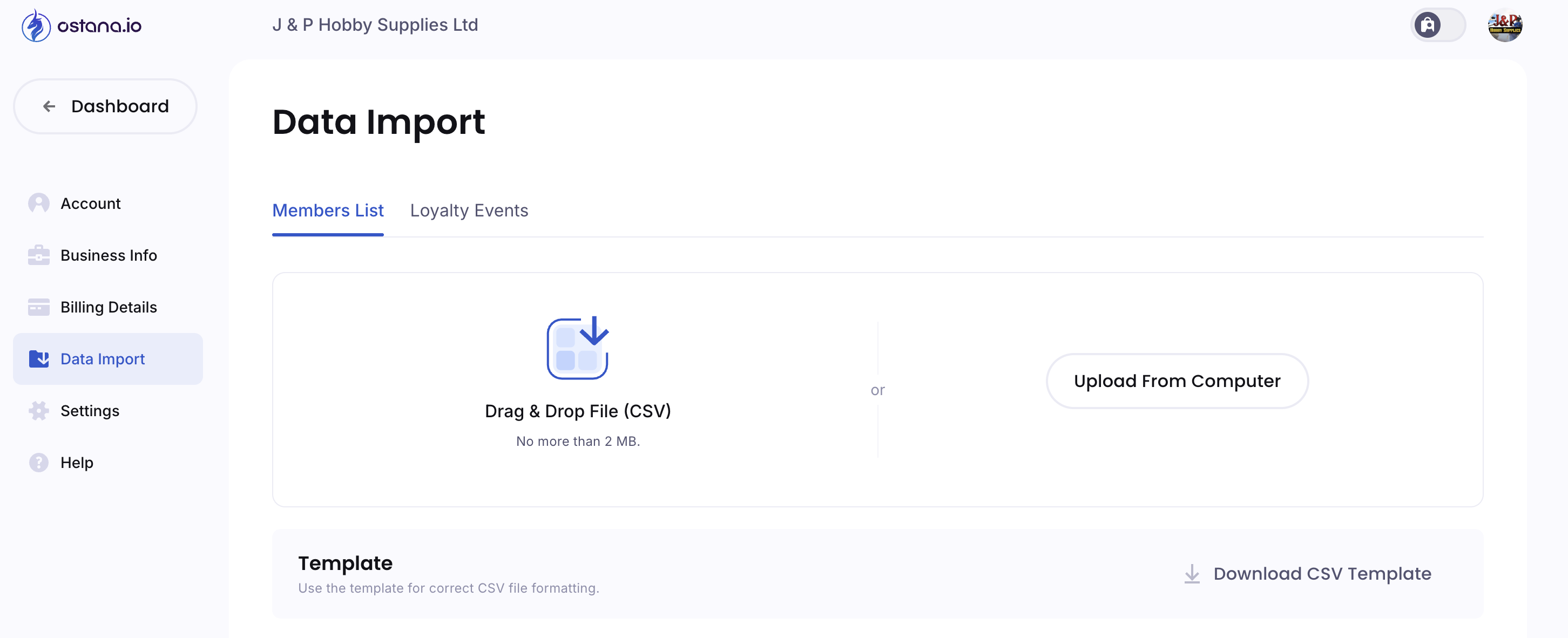
If you already have a list of loyal customers, Ostana makes it easy to import them all at once — no need to add them manually one by one.
Use the Import feature to upload a CSV file and onboard your members in just a few clicks.
✅ Step-by-Step: Bulk Import Customers
Navigate to the Members Section
From your Ostana dashboard, click on the “Members” tab in the sidebar.Click the “Import” Button
You’ll find the Import button in the top-right corner of the Members page.Download the CSV Template (Recommended)
To avoid errors, click “Download Template” to get a sample CSV file with the correct format.
Typical fields include:First Name
Last Name
Email
Phone Number
Prepare Your Customer List
Open the CSV template and paste or input your customer data. Make sure:Emails and phone numbers are correctly formatted
No duplicate entries
Upload the CSV File
Once ready, drag and drop your file or click “Upload File” to select your list.Map Fields (if prompted)
Make sure the fields from your CSV match the required columns in Ostana (e.g., Email → Email, Phone → Phone Number).Click “Import”
Ostana will validate and process the list. You’ll receive a success message once completed.
🧠 Why Use Bulk Import?
Save time when onboarding existing customer lists
Kickstart loyalty programs faster
Enable immediate campaign targeting and reward tracking
🛠 Pro Tips
📇 Clean your data before importing — avoid typos, extra spaces, or missing emails.
✅ Start small: Import a test batch of 5–10 records to confirm formatting is correct.
🔒 Ensure consent: Only upload customers who have opted in to receive marketing or loyalty communication.
🔍 Troubleshooting
Q: My import failed — what went wrong?
Check for missing required fields (like phone or email)
Ensure you didn’t include headers with typos or extra columns
Use the template to minimize format errors
Q: Can I import birthdays or member tiers too?
Yes — if your template includes supported fields (like birthday or tier), they’ll be added automatically.