How to Register a Purchase for a Member manually in Ostana
Last updated: June 14, 2025
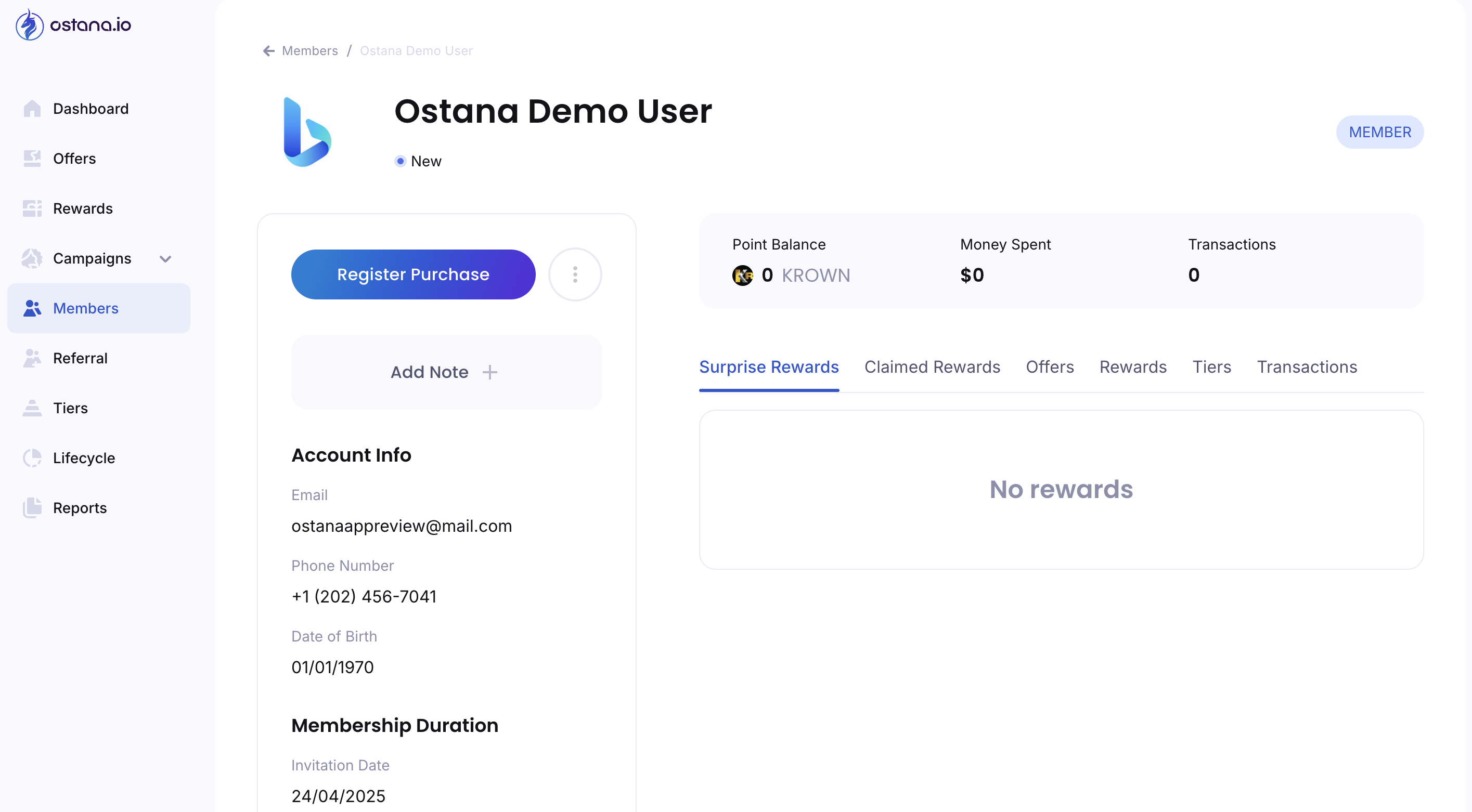
Registering a purchase manually is helpful when POS sync is unavailable or you need to credit a customer after the fact. Ostana lets you log a purchase directly from the member’s profile.
✅ Step-by-Step: Register a Purchase
1. Go to the Members Tab
Click Members from the left-hand menu.
2. Open the Member Profile
Use the search bar or scroll to find the customer, then click on their name.
3. Click the Register Purchase Button
Located at the top of the profile, next to the member name.
4. Fill in the Purchase Details
Amount Spent (e.g. $25.00)
Purchase Date (defaults to today, but you can backdate)
Optional Note (e.g. “Manual entry from receipt”)
5. Confirm and Submit
Click Confirm or Register to finalize the purchase.
The member will be credited with points based on your active earning ratio.
🤝 Pro Tips
Use this tool to credit purchases made during offline events or errors
Include notes to track the context of manual logs
Registered purchases update the Transactions tab and Money Spent total immediately
🚧 Troubleshooting
Not seeing the button?
You may not have staff/admin permissions
Points not credited?
Check that your Transactions under the Reports module
This feature is perfect for maintaining accurate engagement when automation is not available.