How to Export and Upload Customers from Square POS to Ostana
Last updated: June 12, 2025
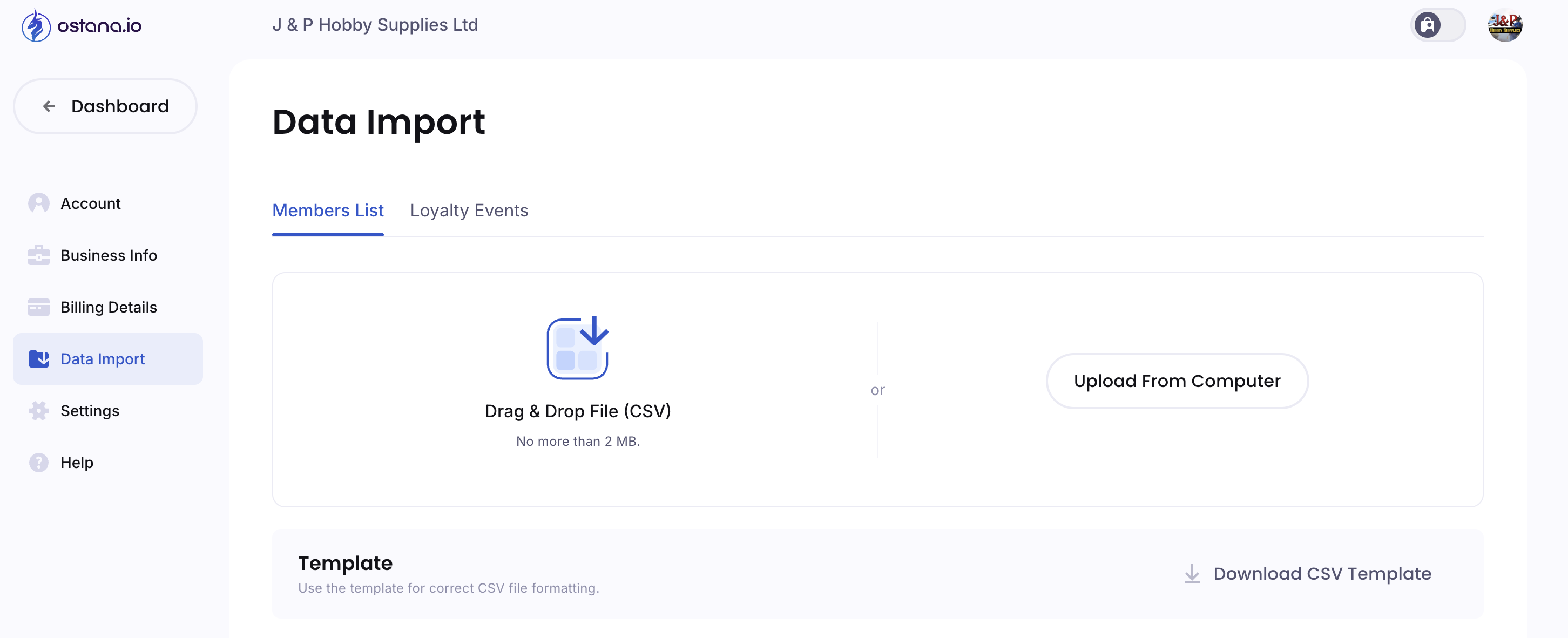
If you’re using Square (Squareup) as your POS system, you can easily export your customer list and import it into Ostana to launch your loyalty program with zero friction.
Follow this simple guide to transfer your Square customer data to Ostana in minutes.
✅ Step-by-Step: Export from Square
Log in to your Square Dashboard
Visit https://squareup.com/dashboard and log into your account.Go to “Customers”
From the left-hand menu, click Customers → Directory.Click on “Import / Export” (top-right corner)
Then select “Export Customers.”Choose Export Format
Select CSV format for your export.Download the File
Save the file to your device. This file contains all available customer data including:Names
Emails
Phone numbers
Notes (if any)
Tags and segments
📥 Step-by-Step: Import into Ostana
Login to Your Ostana Dashboard at https://portal.ostana.io.
Go to the “Members” tab.Click the “Import” Button
Found in the top-right corner of the Members screen.Download the Ostana CSV Template (Optional)
This helps you understand the preferred format. Required fields typically include:First Name
Last Name
Email
Phone Number
Open the Square Export File
Use Excel or Google Sheets to clean and format your data:Remove empty rows or extra columns
Make sure column headers match Ostana’s format
Optional: Add birthday or tags if you have that data
Upload Your File to Ostana
Drag and drop your file or click Upload File.Map Fields (if prompted)
Match Square’s columns (e.g., “Phone Number”) to Ostana’s expected fields.Click “Import”
You’ll receive a confirmation once the list is successfully imported.
🎯 Why Import from Square?
Instantly reward existing customers.
Send personalized campaigns based on purchase behaviour.
Boost early adoption of your loyalty program.
🛠 Tips for Success
📇 Check formatting: Square sometimes exports extra headers or blank columns — clean these before import.
✅ Test in batches: Try uploading 10 records to verify formatting.
🎯 Segment using tags: Tag imported customers in Ostana for easy grouping (e.g., “Square Import June”).
🔍 FAQs
Q: Does Square support automatic sync with Ostana?
Currently, imports are manual. However, Ostana is working on direct Square integration — stay tuned.
Q: What if my export includes duplicate records?
Ostana will skip exact duplicates, but it’s best to deduplicate before upload.
Q: Can I export purchase history?
Square exports customer profiles — not detailed purchase data. For purchase-linked automation, connect Square through Ostana's integration roadmap or use Zapier (coming soon).