How to Export and Upload Customers from Lightspeed POS to Ostana
Last updated: June 12, 2025
Already using Lightspeed POS to manage your customers? Great! You can easily export your customer list and import it into Ostana to kickstart your loyalty program without losing momentum.
This guide walks you through the full process — from export to import — in just a few steps.
✅ Step-by-Step: Export from Lightspeed
Login to your Lightspeed Back Office
Navigate to: https://backoffice.lightspeedhq.comGo to the “Customers” Section
From the left sidebar, click Customers to view your customer list.Click “Export”
In the upper-right corner, click the Export button.Choose “CSV” Format
Export your customer list in CSV format — the most compatible format with Ostana.Download the File
Save the file to your computer for the next step.
📥 Step-by-Step: Import to Ostana
Login to Your Ostana Business Dashboard at https://portal.ostana.io.
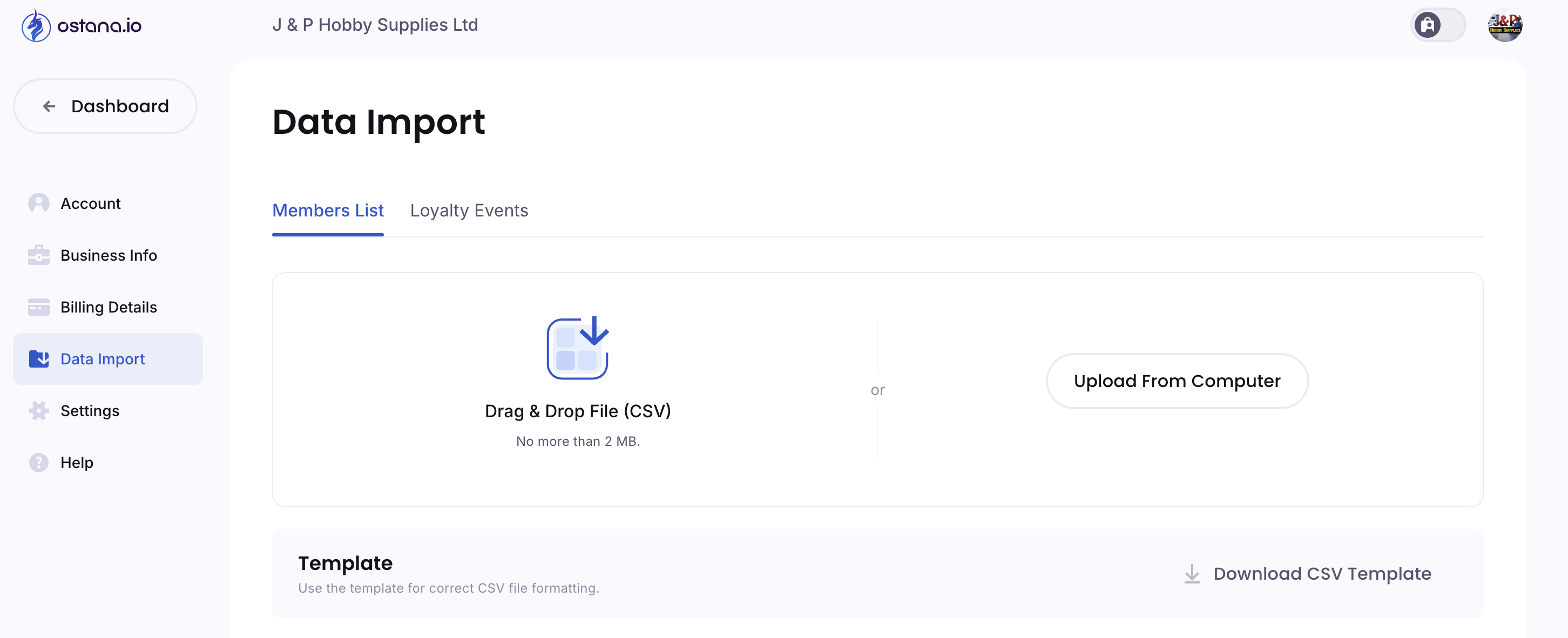
Go to the Members section.Click “Import”
You’ll find this button at the top-right of the Members page.Download Ostana’s CSV Template (Optional)
For better results, download the template and review the required fields:First Name
Last Name
Email
Phone Number
Format the Lightspeed CSV (if needed)
Open your exported Lightspeed file in Excel or Google Sheets.Ensure that fields match the Ostana format
Remove any extra columns or duplicates
Upload Your File
Drag and drop your cleaned file into Ostana or click Upload File.Map the Fields (if prompted)
Align the Lightspeed columns to the Ostana fields — especially Email and Phone Number.Click “Import”
Ostana will process and confirm the import.
🧠 Why This Matters
By syncing your Lightspeed customer list with Ostana, you can:
Immediately reward loyal customers
Segment campaigns based on purchase history
Launch tier-based or visit-based offers
🛠 Tips for a Smooth Import
🧹 Clean the data first: Ensure no empty rows, corrupted phone numbers, or unnecessary columns.
✅ Test with a sample: Try importing 5–10 contacts first.
📣 Tag new members: Use tags or notes in Ostana to flag Lightspeed imports for later tracking.
🔍 FAQs
Q: Can I automate this sync?
Ostana is working on a native integration with Lightspeed. For now, periodic manual exports/imports work well.
Q: Can I export customer birthdays or preferences from Lightspeed?
Yes, if collected — you’ll find this in additional columns during export. Be sure to map them correctly in Ostana if supported.