How to Use the Reports Section in Ostana
Last updated: June 12, 2025
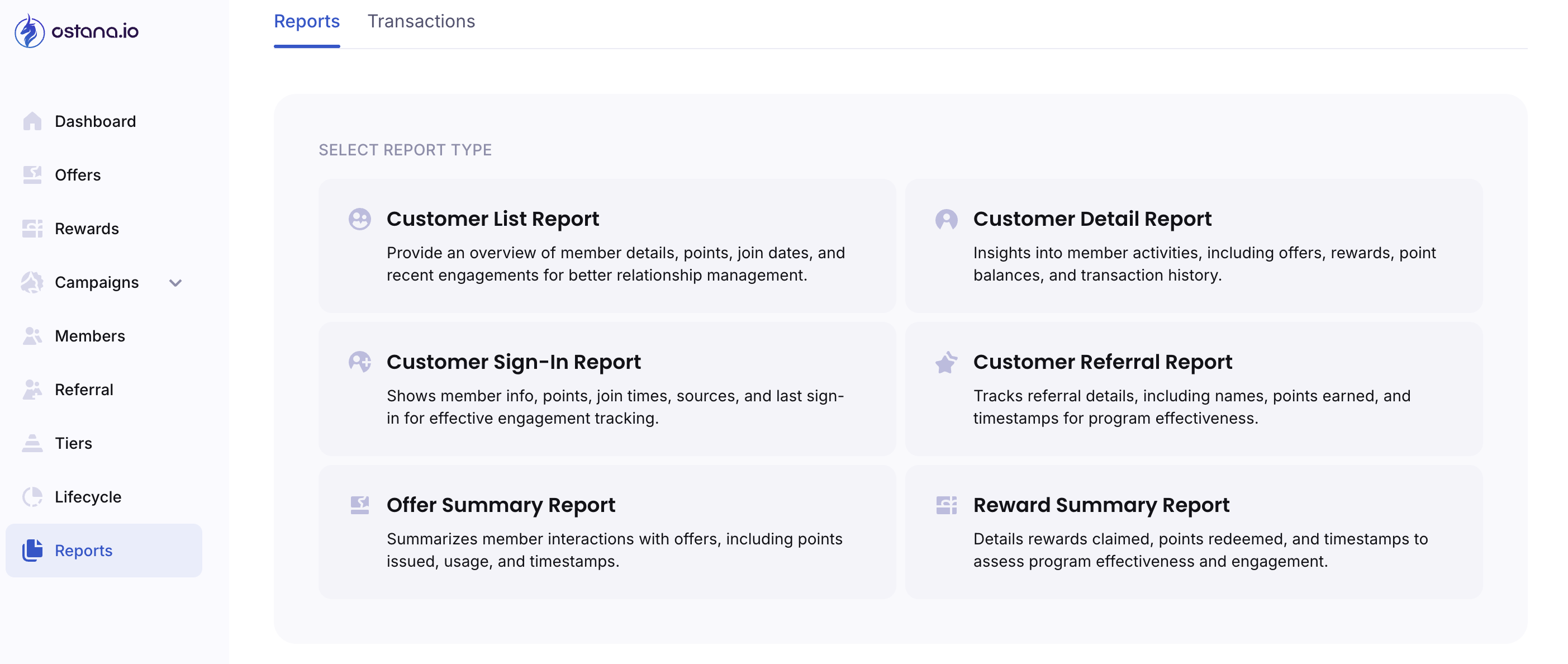
The Reports module in Ostana gives you real-time insights into your loyalty program’s performance—across customers, offers, rewards, referrals, and overall engagement.
This dashboard is essential for tracking ROI, identifying power users, and understanding what’s working (or not) in your loyalty strategy.
📁 Accessing Reports
Log in to your Ostana Dashboard at https://portal.ostana.io.
Navigate to the Reports tab on the left sidebar
Choose between the Reports or Transactions sub-tab
📄 Available Report Types
🧑💼 1. Customer List Report
Provides a high-level view of all your members:
Name, contact info, join date
Total points, membership status
Last activity timestamps
📌 Use it for:
Relationship management
Filtering high/low engagement members
📋 2. Customer Detail Report
Drills into individual member profiles to show:
Points earned and spent
Rewards claimed
Offers used
Recent transaction history
📌 Use it for:
Supporting customer queries
Spotting VIP or at-risk users
Tailoring one-to-one experiences
🕒 3. Customer Sign-In Report
Shows login history and account engagement:
Join date
Sign-in timestamps
Source of signup (In-Store, Online, Ostana Portal)
📌 Use it for:
Tracking adoption and login behaviour
Identifying inactive accounts
🎁 4. Reward Summary Report
Summarizes reward activity:
Total rewards claimed
Points required
Redemption timestamps
Member participation levels
📌 Use it for:
Measuring reward popularity
ROI of specific incentives
Planning future reward strategy
🎯 5. Offer Summary Report
Shows how your offers are performing:
Offers triggered or claimed
Points issued
Engagement and usage over time
📌 Use it for:
Optimizing offer timing and content
Comparing performance across campaigns
🤝 6. Customer Referral Report
Tracks referrals made and earned:
Referrer name
Referee name
Points awarded
Signup timestamps
📌 Use it for:
Monitoring viral growth
Spotting top referrers
Validating program effectiveness
📜 Reports History
Once generated, reports will be listed in the Reports History section for download or reference.
Each report shows a timestamp
Click to download or revisit previous reports
Currently: “No reports found” until first report is run
🧠 Pro Tips
🗓 Download reports weekly or monthly for historical tracking
🔍 Filter by tiers, spend, or lifecycle stages to get deeper insights
🧾 Export to Excel or CSV for internal use or presentations
🔍 FAQs
Q: Can I export these reports?
Yes—all reports can be downloaded as CSV files for further analysis.
Q: How often is data refreshed?
Data is updated in near real-time and recalculated as member activity occurs.
Q: Can I automate report delivery?
Scheduled report automation is in development. For now, reports are manually generated.